In this article, we are going to learn about How to Download File in React Native using URL. to do this there are some libraries available like react-native-fetch-blob, react-native-fs, rn-fetch-blob but most of the users using rn-fetch-blob. you can see the graph for usage here
Basically, the rn-fetch-blob is a fork of react-native-fetch-blob & react-native-fs is not maintained by its owner. so it is good to use rn-fetch-blob. let’s start with an example
1. Create a new project
react-native init ProjectName
2. Install dependency
npm install --save rn-fetch-blob
You can refer GitHub site if any errors with rn-fetch-blob
Check these features of rn-fetch-blob:
- Transfer data directly from/to storage without BASE64 bridging
- File API supports regular files, Asset files, and CameraRoll files
- Native-to-native file manipulation API, reduce JS bridging performance loss
- File stream support for dealing with large file
- Blob, File, XMLHttpRequest polyfills that make the browser-based library available in RN (experimental)
- JSON stream supported base on Oboe.js @jimhigson
3. Import the following components
// Import React Component
import React from 'react';

// Import Components
import {
  Text,
  View,
  Image,
  StyleSheet,
  Platform,
  TouchableOpacity,
  PermissionsAndroid,
} from 'react-native';

// Import RNFetchBlob for the file download
import RNFetchBlob from 'rn-fetch-blob';
4. Function to download file
In this function first, we are getting today’s date to add the time suffix in the filename. & getFileExtention is this function to get file extension from URL. this is helpful when you want to download a file from a dynamic URL.
  const downloadFile = () => {

    // Get today's date to add the time suffix in filename
    let date = new Date();
    // File URL which we want to download
    let FILE_URL = fileUrl;
    // Function to get extention of the file url
    let file_ext = getFileExtention(FILE_URL);

    file_ext = '.' + file_ext[0];

    // config: To get response by passing the downloading related options
    // fs: Root directory path to download
    const { config, fs } = RNFetchBlob;
    let RootDir = fs.dirs.PictureDir;
    let options = {
      fileCache: true,
      addAndroidDownloads: {
        path:
          RootDir+
          '/file_' +
          Math.floor(date.getTime() + date.getSeconds() / 2) +
          file_ext,
        description: 'downloading file...',
        notification: true,
        // useDownloadManager works with Android only
        useDownloadManager: true,
      },
    };
    config(options)
      .fetch('GET', FILE_URL)
      .then(res => {
        // Alert after successful downloading
        console.log('res -> ', JSON.stringify(res));
        alert('File Downloaded Successfully.');
      });
  };
Function to get an extension from URL
 const getFileExtention = fileUrl => {
    // To get the file extension
    return /[.]/.exec(fileUrl) ?
             /[^.]+$/.exec(fileUrl) : undefined;
  };
5. Android Storage permission
To download a file in Android you need to get storage permission access from the user to do this we have to create a function to get storage permission from user
// Function to check the platform
// If Platform is Android then check for permissions.
const checkPermission = async () => {

    if (Platform.OS === 'ios') {
      downloadFile();
    } else {
      try {
        const granted = await PermissionsAndroid.request(
          PermissionsAndroid.PERMISSIONS.WRITE_EXTERNAL_STORAGE,
          {
            title: 'Storage Permission Required',
            message:
              'Application needs access to your storage to download File',
          }
        );
        if (granted === PermissionsAndroid.RESULTS.GRANTED) {
          // Start downloading
          downloadFile();
          console.log('Storage Permission Granted.');
        } else {
          // If permission denied then show alert
          Alert.alert('Error','Storage Permission Not Granted');
        }
      } catch (err) {
        // To handle permission related exception
        console.log("++++"+err);
      }
    }
  };
6. Source code
Heres the source code for the download File in React Native
// How to Download a File in React Native from any URLHow to download File in React Native using URL// Import React Component import React from 'react'; // Import React native Components import { Text, View, Image, StyleSheet, Platform, TouchableOpacity, PermissionsAndroid, } from 'react-native'; // Import RNFetchBlob for the file download import RNFetchBlob from 'rn-fetch-blob'; const Dashboard = () => { const fileUrl = 'https://www.techup.co.in/wp-content/uploads/2020/01/techup_logo_72-scaled.jpg'; const checkPermission = async () => { // Function to check the platform // If Platform is Android then check for permissions. if (Platform.OS === 'ios') { downloadFile(); } else { try { const granted = await PermissionsAndroid.request( PermissionsAndroid.PERMISSIONS.WRITE_EXTERNAL_STORAGE, { title: 'Storage Permission Required', message: 'Application needs access to your storage to download File', } ); if (granted === PermissionsAndroid.RESULTS.GRANTED) { // Start downloading downloadFile(); console.log('Storage Permission Granted.'); } else { // If permission denied then show alert Alert.alert('Error','Storage Permission Not Granted'); } } catch (err) { // To handle permission related exception console.log("++++"+err); } } }; const downloadFile = () => { // Get today's date to add the time suffix in filename let date = new Date(); // File URL which we want to download let FILE_URL = fileUrl; // Function to get extention of the file url let file_ext = getFileExtention(FILE_URL); file_ext = '.' + file_ext[0]; // config: To get response by passing the downloading related options // fs: Root directory path to download const { config, fs } = RNFetchBlob; let RootDir = fs.dirs.PictureDir; let options = { fileCache: true, addAndroidDownloads: { path: RootDir+ '/file_' + Math.floor(date.getTime() + date.getSeconds() / 2) + file_ext, description: 'downloading file...', notification: true, // useDownloadManager works with Android only useDownloadManager: true, }, }; config(options) .fetch('GET', FILE_URL) .then(res => { // Alert after successful downloading console.log('res -> ', JSON.stringify(res)); alert('File Downloaded Successfully.'); }); }; const getFileExtention = fileUrl => { // To get the file extension return /[.]/.exec(fileUrl) ? /[^.]+$/.exec(fileUrl) : undefined; }; return ( <View style={styles.container}> <View style={{ alignItems: 'center' }}> <Text style={{ fontSize: 25, textAlign: 'center' }}> React Native File Download Example </Text> </View> <Image source={{ uri: fileUrl, }} style={{ width: '100%', height: 100, resizeMode: 'contain', margin: 5 }} /> <TouchableOpacity style={styles.button} onPress={checkPermission}> <Text style={styles.text}> Download File </Text> </TouchableOpacity> </View> ); }; export default Dashboard; const styles = StyleSheet.create({ container: { flex: 1, justifyContent: 'center', alignItems: 'center', backgroundColor: '#FFFFFF', }, text: { color: '#fff', fontSize: 20, textAlign: 'center', padding: 5, }, button: { width: '80%', padding: 10, backgroundColor: 'blue', margin: 10, }, });
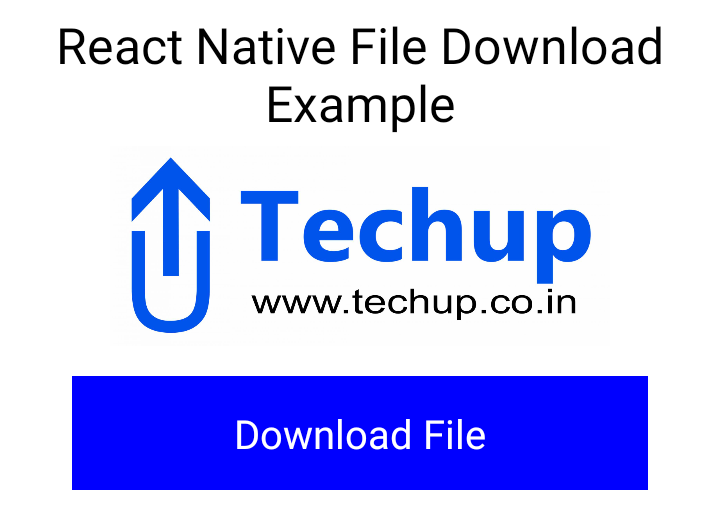
7. Output:
I have posted another article for rn-fetch-blob iOS implementation. please check this post.