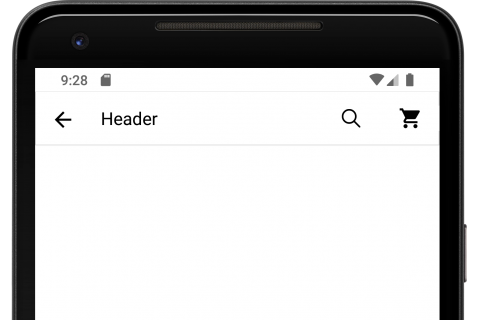
In this article, we are going to create our React-native custom toolbar layout, there is the default NavigationOptions toolbar available in react-navigation but some times we have to create custom navigation toolbar, it makes easy to design when you have to add some more complex design so let’s start for React-native custom toolbar layout

install react-navigation to navigate between screen
npm install react-navigation
install react-native-vector-icons, this will provide icon package for design
npm install react-native-vector-icons

react-native link react-native-vector-icons
1. Create components
Create a Component folder in this folder we are going to create two-component
-
BackButton.js
-
CustomToolbar.js
Let’s create BackButton.js
2. BackButton.js
import React from 'react';
import { View, TouchableOpacity, Platform } from 'react-native';
import {withNavigation} from 'react-navigation';
import Icon from 'react-native-vector-icons/Ionicons';

 class BackButton extends React.Component {

  render() {
      if(Platform.OS === 'ios'){
        return (
            <TouchableOpacity
            onPress={() => this.props.navigation.goBack()}>
            <View style={{ padding:20, justifyContent: 'center', alignItems: 'center' }}>
            <Icon name="ios-arrow-back" size={25} color="#000000" />    //<---- Back icon for iOS
            </View>
            </TouchableOpacity>
          );
      }else{
        return (
            <TouchableOpacity
            onPress={() => this.props.navigation.goBack()}>
            <View style={{  padding:20,justifyContent: 'center', alignItems: 'center' }}>
            <Icon name="md-arrow-back" size={25} color="#000000" />      //<---- Back icon for Android
            </View>
            </TouchableOpacity>
          );
      }

  }
}
export default withNavigation(BackButton);
As you see in above BackButton.js I have created a back button which I will use in CustomToolbar.js, Let’s look at CustomToolbar.js
3. CustomToolbar.js
import React from 'react';
import { Text, View, StyleSheet } from 'react-native';
import BackButton from './BackButton';      //<---- import Backbutton.js here
import {withNavigation} from 'react-navigation';
import Icon from 'react-native-vector-icons/Ionicons';

 class DetailsScreen extends React.Component {
    constructor(props) {
        super(props);
    }

  render() {
    return (
        <View style={styles.navBar}>
        <View style={styles.leftContainer}>
         <BackButton/>     //<---- Use of BackButton.js
        </View>
        <Text style={styles.middleContainer}>
         {this.props.title}
        </Text>
        <View style={styles.rightContainer}>
          <View style={styles.rightIcon}>
          <Icon name="ios-search" size={25} color="#000000" />
              </View>
              <View style={styles.rightIcon}>
          <Icon name="md-cart" size={25} color="#000000" />
              </View>
        </View>
      </View>
      );


  }
}
export default withNavigation(DetailsScreen);
const styles = StyleSheet.create({
    navBar: {
      height: 54,
      flexDirection: 'row',
      justifyContent: 'space-between',
      alignItems: 'center',
      borderBottomWidth: 0,
      shadowColor: '#000',
      shadowOffset: { width: 0, height: 2 },
      shadowOpacity: 0.8,
      shadowRadius: 4,
      elevation: 1,
    },
    leftContainer: {
      justifyContent: 'flex-start',
      flexDirection: 'row'
    },
    middleContainer: {
        flex: 2,
        backgroundColor: 'white',
        flexDirection: 'row',
        fontSize:18,
        marginLeft: 10,
        marginRight:10
      },
    rightContainer: {
      flex: 1,
      flexDirection: 'row',
      justifyContent: 'flex-end',
      alignItems: 'center',
    },
    rightIcon: {
    paddingHorizontal:20,
      resizeMode: 'contain',
      backgroundColor: 'white',
    }
  });
In about js, I have created Toolbar which we will be going to use as follows
4. App.js
import React from 'react';
import { Text, View, TouchableOpacity, StatusBar } from 'react-native';
import CustomToolbar from './components/CustomToolbar';   //<---- Import CustomToolbar here
export default class DetailsScreen extends React.Component {
  static navigationOptions = {
    header: null,
    };
  render() {
    return (
      <View style={{ flex: 1, }}>
       <StatusBar backgroundColor="#FFFFFF" barStyle="dark-content" />
       <CustomToolbar title="Header" backgroundColor="#FFFFFF"/>    //<---- Use of customToolbar
      </View>
    );
  }
}
5. Output
Thank you.. enjoy coding… 🙂